Self-Hosted Connection via the AmneziaWG Protocol Does Not Work
This guide will help you solve connection issues with the AmneziaWG protocol installed on a server using Amnezia Self-hosted in the AmneziaVPN app. Before trying the steps below, make sure your server is paid for and active.
Check for Whitelist Restrictions
The information in this section about internet restrictions based on "whitelists" is relevant for users located in Russia.
If you cannot connect to the VPN, or the connection succeeds but there is no traffic, meaning websites do not open and content in apps does not load, first check how your internet connection works without VPN:
- only blocked websites do not open, such as YouTube and Instagram
- only websites from the “whitelist” open, while foreign websites do not
One of the easiest ways to check this is to open https://nperf.com using the same internet connection that fails with the VPN, and run a speed test to any foreign server.
If the site does not open, or the download/upload speed fluctuates at just a few kilobits per second, this may indicate restrictions on internet access, including “whitelist” restrictions. In such cases, changing your internet source can help. Sometimes mobile internet from a different carrier works, but the most reliable solution is to connect over Wi-Fi to a wired internet connection.
Here is one of many articles online that can help you better understand how “whitelist” internet restrictions are usually bypassed: https://habr.com/ru/articles/985674 (you need VPN enabled to open the article).
If the speed test result on nperf looks acceptable, proceed to checking server availability and the AmneziaWG protocol settings.
Server Access over SSH
Keep using the same internet connection that has the VPN issue, and try the following:
- connect to the server over SSH
- open the VPN user management section in the AmneziaVPN app
If the server is unreachable over SSH and you cannot open the VPN user management section either, the most likely cause is that your server IP address has been blocked by your mobile carrier or internet provider. In that case, the solution is either to change the server IP address through your hosting provider’s support team or to use a server from a different hosting provider that has not been blocked.
Protocol Settings
If the server is reachable over SSH and the VPN user management section is also available, the most likely cause of the VPN issue is that one or more AmneziaWG protocol parameters are being blocked.
Reinstalling the Protocol
If you use AmneziaWG 2.0 or installed AmneziaWG 3.1 using AmneziaVPN 5.0.1.5, we recommend reinstalling the protocol using AmneziaVPN 5.0.2.1 or later. The app will install AmneziaWG 3.1 with updated settings.
To reinstall the AmneziaWG protocol, you first need to remove it from the server. This will also remove all users created for the protocol, and their connections will stop working. After reinstalling the protocol, you will need to recreate the users and issue new connection keys or configuration files.
If your VPN is configured on a router, make sure the router supports the new protocol version before migrating from AmneziaWG 2.0 to AmneziaWG 3.1.
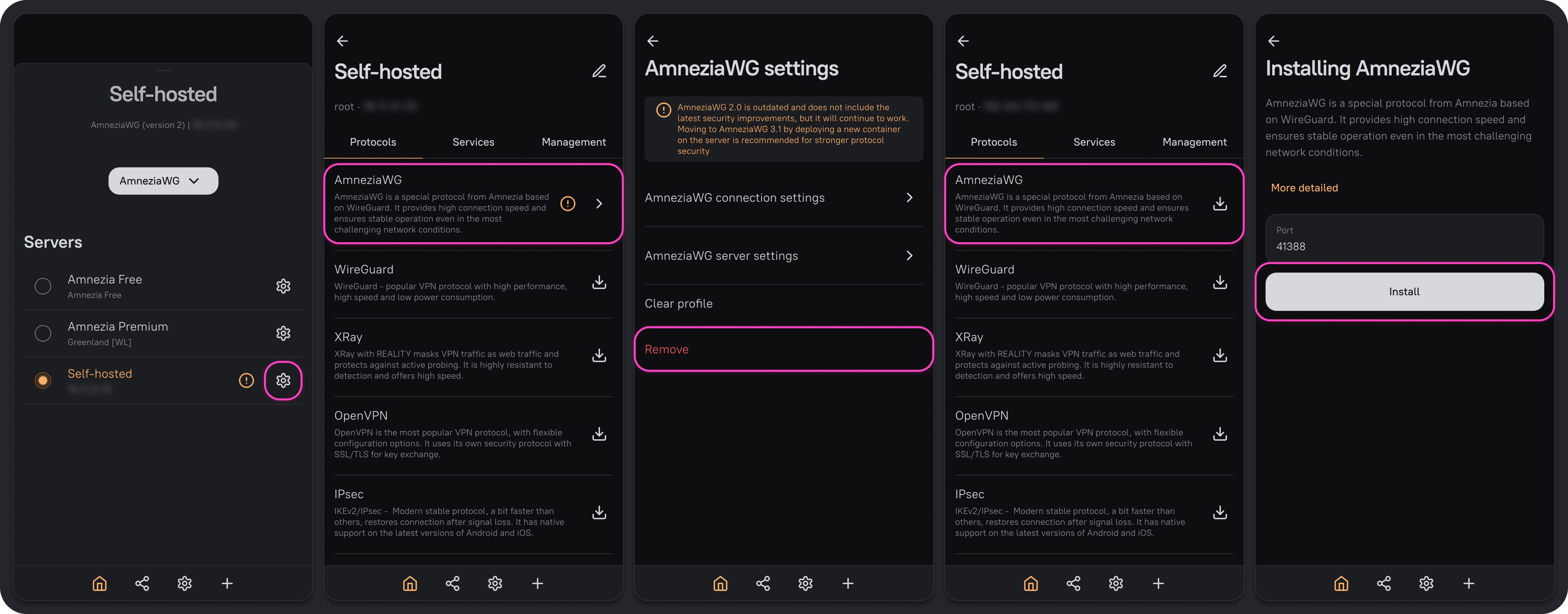
- Update AmneziaVPN to 5.0.2.1 or later from the downloads page (mirror).
- Open the AmneziaVPN app and click any connection name.
- Click ⚙️ (gear icon) to the right of your server connection.
- On the Protocols tab, select AmneziaWG.
- In the protocol settings, click Remove.
- Return to the protocol list and click the 📥 icon next to AmneziaWG.
- Enter an available port below
9999, for example585or1234, and click Install. Make sure the selected port is not already used by another service on the server.
After installation, test the connection and, if the problem is resolved, create users and share guest access with them.
If you create a guest connection using AmneziaWG 3.1 in AmneziaVPN versions earlier than 5.0.1.5, it will not work — Not installed will appear under the connection name.
If you create a full-access server connection in an older version of AmneziaVPN, the installed AmneziaWG 3.1 protocol will not be shown.
Changing the Signature
An AmneziaWG 3.1 connection may fail if your internet provider blocks the preconfigured signature. Try replacing the I1 value in connection settings. This changes the signature only on the current device — you do not need to recreate users or issue new connection keys.
-
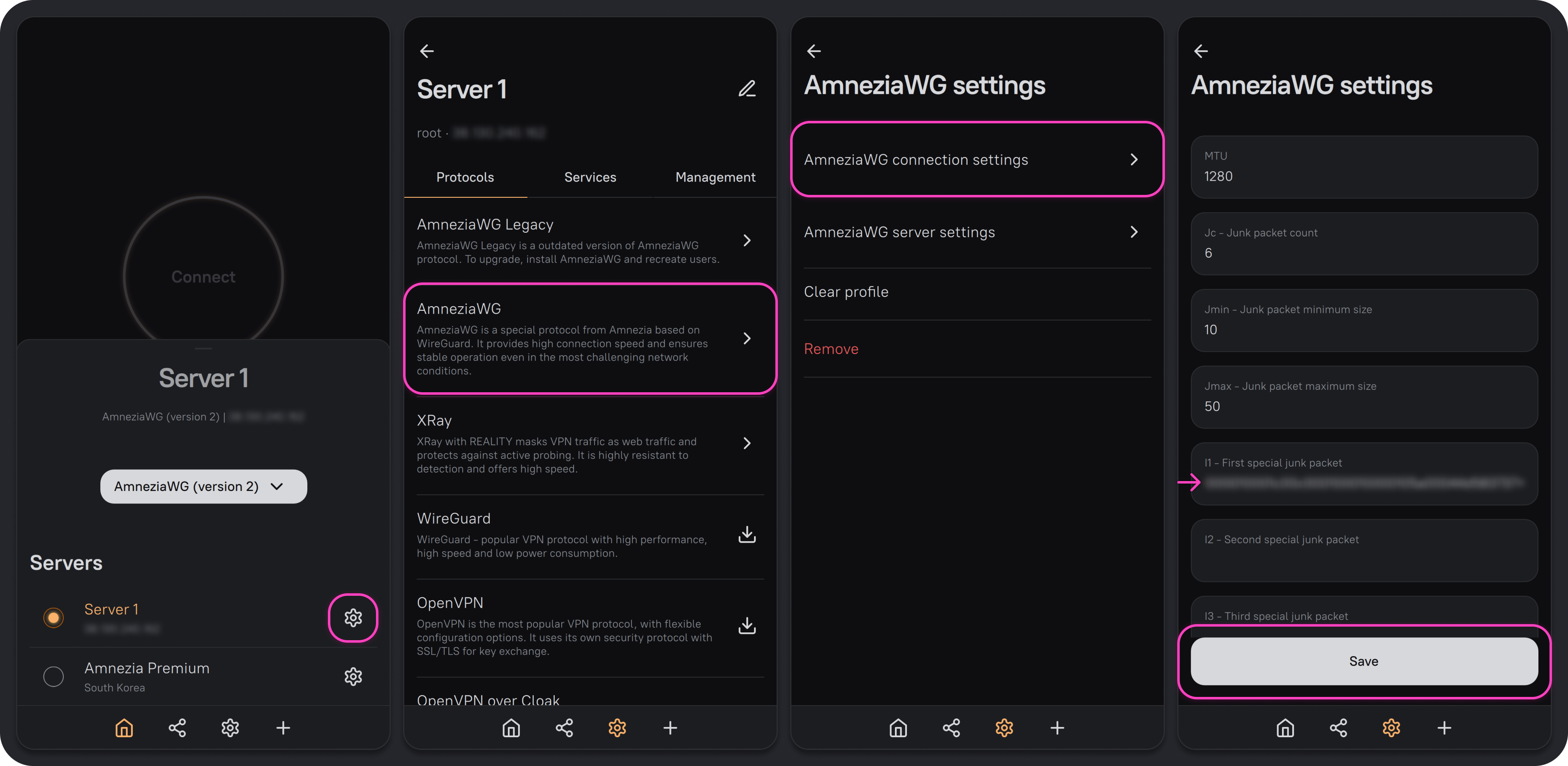
Open AmneziaVPN and click any connection name.
-
Click ⚙️ (gear icon) to the right of your server connection.
-
On the Protocols tab, select AmneziaWG, then open AmneziaWG connection settings.
-
Replace the value in I1 - First special junk packet with the following string:
<b 0xc70000000108ce1bf31eec7d93360000449e227e4596ed7f75c4d35ce31880b4133107c822c6355b51f0d7c1bba96d5c210a48aca01885fed0871cfc37d59137d73b506dc013bb4a13c060ca5b04b7ae215af71e37d6e8ff1db235f9fe0c25cb8b492471054a7c8d0d6077d430d07f6e87a8699287f6e69f54263c7334a8e144a29851429bf2e350e519445172d36953e96085110ce1fb641e5efad42c0feb4711ece959b72cc4d6f3c1e83251adb572b921534f6ac4b10927167f41fe50040a75acef62f45bded67c0b45b9d655ce374589cad6f568b8475b2e8921ff98628f86ff2eb5bcce6f3ddb7dc89e37c5b5e78ddc8d93a58896e530b5f9f1448ab3b7a1d1f24a63bf981634f6183a21af310ffa52e9ddf5521561760288669de01a5f2f1a4f><r 640><b 0xe78ab395ff2fb854247ad06d446cc2944a1aefb90573115dc198f5c1efbc22bc6d7a74e41e666a643d5f85f57fde81b87ceff95353d22ae8bab11684180dd142642894d8dc34e402f802c2fd4a73508ca99124e428d67437c871dd96e506ffc39c0fc401f666b437adca41fd563cbcfd0fa22fbbf8112979c4e677fb533d981745cceed0fe96da6cc0593c430bbb71bcbf924f70b4547b0bb4d41c94a09a9ef1147935a5c75bb2f721fbd24ea6a9f5c9331187490ffa6d4e34e6bb30c2c54a0344724f01088fb2751a486f425362741664efb287bce66c4a544c96fa8b124d3c6b9eaca170c0b530799a6e878a57f402eb0016cf2689d55c76b2a91285e2273763f3afc5bc9398273f5338a06d><r 64> -
Click Save and try connecting to the VPN.
If needed, you can enter this signature in I1 - Special junk 1 under AmneziaWG server settings. Connection keys and configuration files for new users will then be generated with this signature.
Saving changes in server settings reinstalls the protocol container. You will need to recreate the users and issue new connection keys or configuration files.
If this signature does not help, you can find another one yourself and test it in connection settings in the same way.
If the VPN connection still does not work, ask for help in our Telegram group or contact Amnezia Self-hosted user support: